Planyo is a flexible online reservation/booking system for hotels, holiday apartments, B&B, boat rentals etc.
If you would like to use the Planyo system, you need to have a Planyo account first. You can create one by
signing up. All accounts are free and with no obligation for the first 30 days so you can thoroughly test the system!
After signing up, create your Planyo site. On the
help page you will find many materials,
including video tutorials, that will guide you through the process of creating an online reservation site and adding rooms,
boats and other types of resources.
Download the plugin here
Otwórz konto
Cennik
The Planyo plugin
This plugin allows you to embed the Planyo reservation form on your web site.
This way, your clients will stay on your web site throughout the whole reservation process.
You can find more information about the integration process at your Planyo account. Once logged in, go to the
Settings
section and choose the
Integrate with your site button at the bottom of the page.
Note: if you don't mind that your clients will be redirected to planyo.com to make a reservation,
you don't need to use this plugin at all.
First upload and install the Planyo plugin
(
available here) in your Typo3 system. You can do this in
ADMIN TOOLS / Extension Manager. Once in Extension Manager, change the mode on top of the screen to
import extensions.
Next, go to the page where you want to insert the plugin.
Click the New Content icon to add a new element.
In the Select Type of Content Element section, choose Plugins / General Plugin.
Then, in Select Position, choose a location of the element on the page.
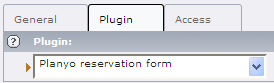
Go to the Plugin tab and select Planyo reservation form from the drop-down list.
Next, choose the Plugin tab again to view available properties.



 POWIĄZANE STRONY DOKUMENTACJI


 Copyright ©2024 Xtreeme Sagl Ochrona prywatności Zasady i warunki Program partnerski