This snippet allows you to embed the Planyo reservation form on your web site.
This way, your clients will stay on your web site throughout the whole reservation process.
You can find more information about the integration process at your Planyo account. Once logged in, go to the
if you don't mind that your clients will be redirected to planyo.com to make a reservation,
you don't need to use this snippet at all.
First download the MODx component (
available here).
Po ściągnięciu komponentu, wypakuj jego zawartość do katalogu
assets/snippets/planyo w głównym katalogu MODx. Kiedy znajdziesz się w panelu administracyjnym MODx, przejdź do
Elementy / Zarządzaj Elementami / Wycinki i naciśnij na
Nowy Wycinek.
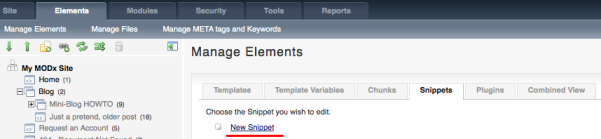
W
Nazwa Wycinka wpisz
planyo i wklej zawartość
snippet.src.php do
Kod Wycinka. Naciśnij
Zapisz w celu zapisania nowego wycinka.
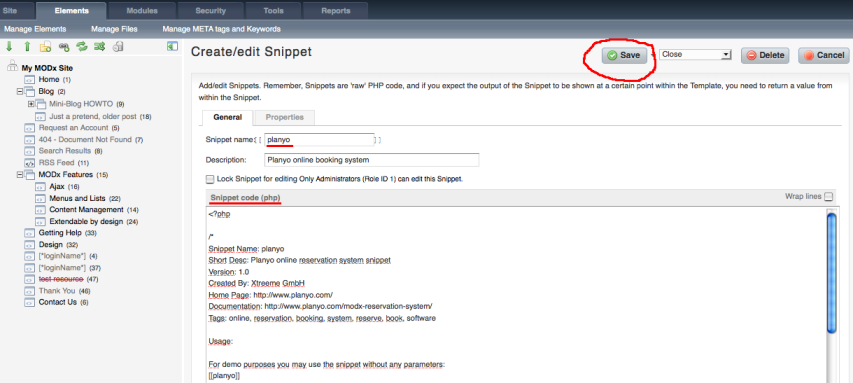
Nowy wycinek pojawi się na liście zainstalowanych wycinków.

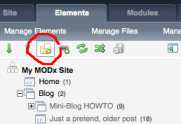
Teraz, powinieneś wybrać lokalizację formularza Planyo. Stworzymy tutaj nową stronę internetową. Oczywiście, możesz również użyć jakąkolwiek istniejącą lokalizację. W
Elementy / Zarządzaj Elementami naciśnij ikone
Nowy Element.
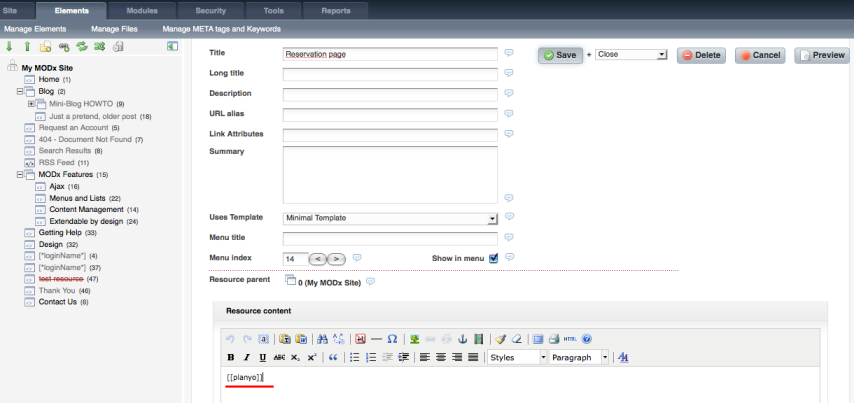
Gdziekolwiek będziesz chciał żeby formularz Planyo się pojawił, połącz wycinek ze znacznkiem. [!planyo? &site=`
xyz`!] gdzie
xyz to Numer Identyfikacyjny twojego kalendarza Planyo. Jeśli nie masz takiego, stwórz najpierw konto Planyo, alb możesz połączyć wycinek bez jakichkolwiek parametrów dla celów testowych: [!planyo!]. Zauważ: Użyj [!planyo!] zamiast [[planyo]] w celu wyłączenia cachowania. Jest to wymagane, kiedy używa się modu SEO-friendly (który jest domyślny).
I to wszystko! Masz przed sobą rezultat integracji. Proszę zauważyć, że możesz uaktualnić plik
planyo-styles.css w środku lokalizacji docelowej wtyczki Planyo, żeby dostosować wygląd & odczucia odnośnie wtyczki.
Zobacz
readme.html dla dodatkowych parametrów, które możesz przekazać wycinkowi, dla późniejszego dostosowania do swoich potrzeb (np. żeby zmienić język)
lub zapytaj FAQ w celu dokładnego wyjaśnienia wszystkich parametrów.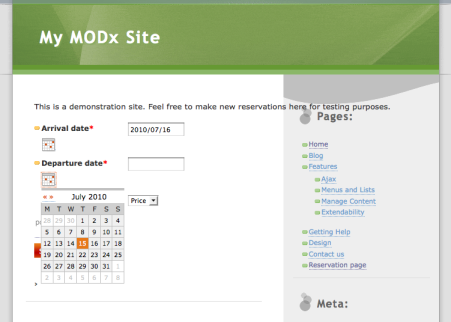
Po dodaniu formularza planyo na wybranej stronie, będzie on wyświetlał, w zależności od zastosowania, pole szukania (z wynikami), formularz rezerwacji, lub inna związana z Planyo treść wymagana do procesu rezerwacji. Po wybraniu jednego z dostępnych komponentów, w dalszej części tutorialu (Wyszukiwarka dostępności, Podgląd kalendarza lub Link rezerwacyjny) podaj URL strony z formularzem planyo(np. http://myserver.com/my_reservations.php) w polu URL do strony rezerwacji na Twojej witrynie . W ten sposób, przez użycie jakiegokolwiek komponentu, odwiedzający pozostaną na twojej stronie (a dokładniej na stronie z formularzem planyo) przez cały proces rezerwacji.



 POWIĄZANE STRONY DOKUMENTACJI
 Copyright ©2024 Xtreeme Sagl Ochrona prywatności Zasady i warunki Program partnerski